.webp)
StandardC Enterprise Now Supports Single Sign-On (SSO)
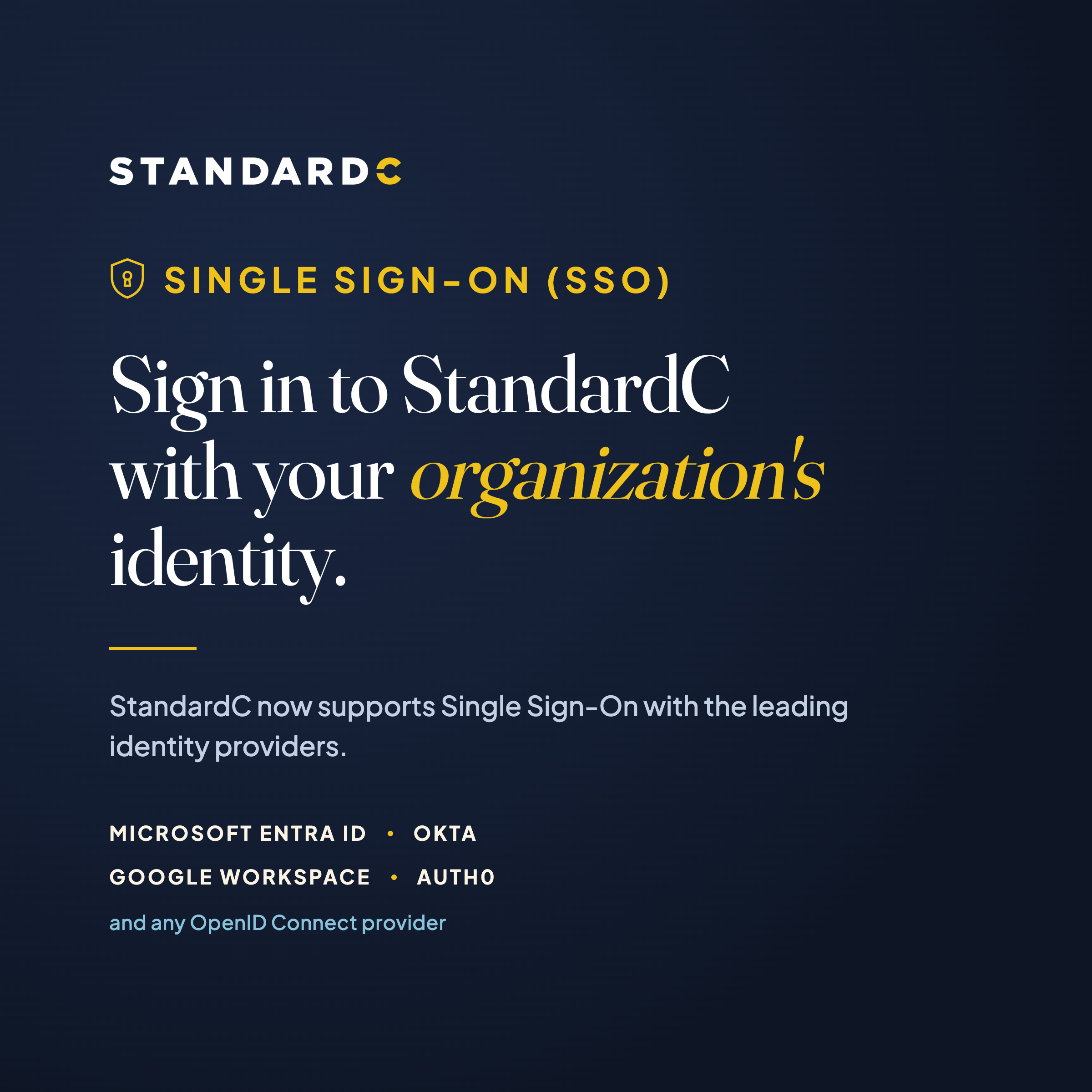
Your team can now sign in to StandardC with the same corporate login they use for email and every other work system. StandardC Enterprise supports Single Sign-On (SSO) with the leading identity providers, bringing StandardC under the authentication policies, access controls, and audit trails your institution already runs.
SSO is available now for all StandardC Enterprise institutions, and it is optional: if you do nothing, your users keep signing in with their StandardC email and password.
Works with your identity provider
StandardC connects to any identity provider that supports OpenID Connect (OIDC). Named integrations include:
- Microsoft Entra ID (formerly Azure AD)
- Okta
- Google Workspace
- Auth0
- Ping Identity
- OneLogin
- Any other OIDC-compliant provider, configured as Generic OIDC
Most institutions use one provider. If you enable more than one, users simply choose which provider to sign in with on the StandardC login page.
What SSO delivers for your institution
One login, fewer passwords. Users sign in with the credentials they use every day. There is no separate StandardC password to create, remember, or reset.
Your security policies apply automatically. Multi-factor authentication, password rules, and conditional access set by your IT team carry over to StandardC. Authentication happens entirely within your identity provider; StandardC never sees or stores a corporate password.
Faster, cleaner offboarding. When IT disables an employee in your identity provider, that person can no longer sign in to StandardC through SSO. With enforcement on, departed employees have no other way in.
Fewer support tickets. Password resets and lockouts are handled by your IT team's existing tools rather than by a separate vendor process.
Audit and compliance built in. Sign-in events are logged in your identity provider alongside your other systems, which simplifies examiner and audit requests.
Enterprise controls, at your pace
Test before you commit. Once SSO is enabled, a Sign in with SSO button appears on the login page while password sign-in stays available, so users can adopt SSO at their own pace and nobody gets locked out during rollout.
Enforce SSO when you are ready. Once every user has signed in through SSO, you can ask StandardC to turn on enforcement and retire StandardC passwords entirely.
Allowed email domains. Restrict SSO sign-in to addresses on your institution's domains, blocking sign-in attempts from outside your organization. We recommend this for every institution.
Your own login slug. Each institution gets a short sign-in identifier, and users can launch StandardC directly from your company app portal.
Setup is a short exchange, not a project
Your IT team registers StandardC as an OIDC application in your identity provider and shares three values with us; we enter them, enable SSO, and you test with a user or two while password sign-in remains available. No agents to install, no directory sync required, and settings changes apply at each user's next sign-in, so nobody is signed out mid-session.
Frequently asked questions
Will users lose access when SSO is turned on?
No. Password sign-in continues to work until you ask StandardC to enforce SSO, so users can switch over at their own pace.
Does StandardC see our passwords?
No. Your identity provider handles the password, the multi-factor prompt, and any conditional access rules. StandardC only receives confirmation that the user signed in successfully, plus basic profile details such as name and email.
Can some users use SSO while others use passwords?
Yes, as long as enforcement is off. Both methods are available on the login page.
Does a new employee still need a StandardC account?
Yes. SSO handles sign-in, not access. Users are still invited to StandardC and assigned a role, then complete initial profile setup on first sign-in.
Get started
Contact your StandardC account manager or support@standardc.io and let us know you would like to enable SSO. We will send your IT team the setup details and coordinate from there.